
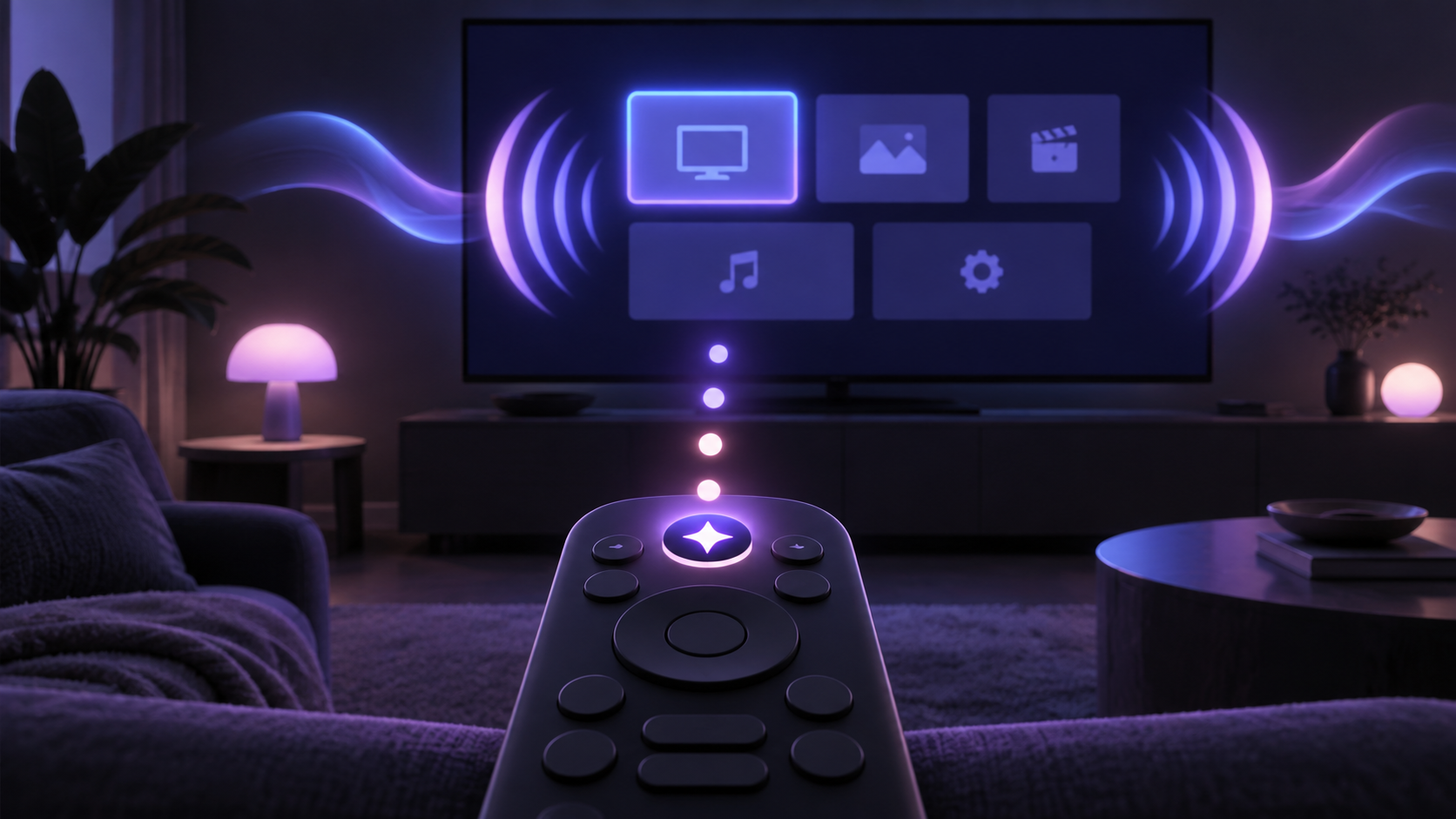
Roku's screen reader speaks interface text, menu names and other on-screen controls to help people with visual impairments navigate a supported device. The feature was previously called Audio Guide, so older instructions may use that name.
Use the remote shortcut
- Find the Star button. Roku describes it as the button below and to the right of the directional pad on a standard remote.
- Press it four times quickly. The screen reader should announce its new state.
- Repeat the four presses to turn it off. If nothing happens, confirm that the shortcut is enabled in Accessibility settings.
The shortcut can be disabled. That is useful when accidental presses turn spoken navigation on unexpectedly.
Change screen-reader settings
Go to Settings > Accessibility > Screen reader. Roku documents controls for turning the feature on or off, changing speech rate, adjusting the screen-reader volume relative to the television volume, and enabling or disabling the remote shortcut.
When choosing a speech rate, move through the available settings and listen to the sample. Press OK on the preferred rate.
Turn it on during first-time setup
On supported Roku products, the screen reader can be started from the Language screen, which is the first screen shown after the device is connected and powered on. Press Star four times. If the device uses a voice remote, Roku says the remote must first be paired with the player.
What the screen reader announces
- The name of the current screen and your location within it.
- Menu items and whether the selected element is actionable.
- An item's position in a list or grid where that information is available.
- Options exposed by the supported Roku interface.
Use the directional pad to move through menus and press OK to activate the focused item. Third-party applications can expose different information, so spoken coverage may vary outside the main Roku interface.
If the screen-reader option is missing
- Check the current Roku support page for the supported products and region.
- Run a manual software update if your model should support the feature but the menu is absent.
- Confirm that you are looking under Accessibility and that the remote shortcut has not been disabled.
- If the device cannot reach the update service, work through the Roku Wi-Fi connection checklist.
Roku's specific screen-reader documentation currently describes product and regional limits. Availability can therefore differ between models and locations.
Common questions
Why did my Roku suddenly start talking?
The Star button may have been pressed four times quickly. Repeat the shortcut to turn the screen reader off, or disable the shortcut in Accessibility settings.
Can I make the voice slower?
Yes. Roku lists Slow, Normal, Fast and Very Fast speech-rate choices in the screen-reader settings.
Does the screen reader work in every application?
Coverage can vary. The feature reads information made available through the Roku interface and supported application controls.
Official sources and review note
- Enable the text-to-speech screen reader — Official Roku Support
- Accessibility on the Roku platform — Official Roku Support
Last checked September 10, 2026. Supported products, regions, menu names and shortcut behavior can change with Roku OS. Follow the current Roku support page for your device.