
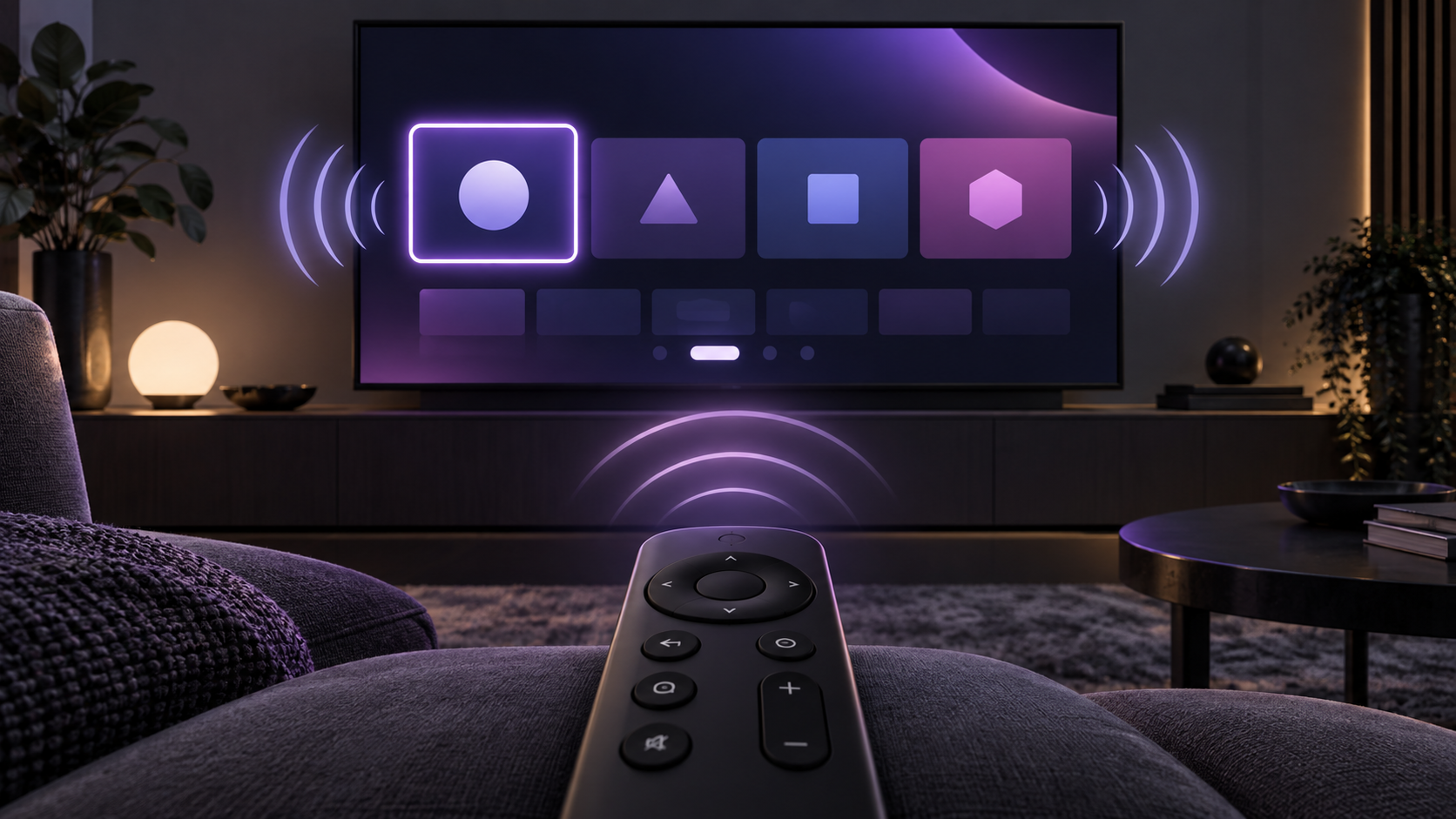
VoiceView can make Fire TV menus and settings easier to navigate by reading focused items aloud. It is designed for remote-based interaction, including setup and ordinary system navigation. The feature is separate from captions, which display text during playback, and from visual aids that enlarge or highlight part of the screen.
What VoiceView does
VoiceView is a screen reader. As the focus moves through menu choices and settings, it announces the item currently selected. A green box marks the current location on screen while the spoken feedback explains the selection.
It is useful when spoken navigation is preferable to reading the menu. Amazon notes that feature availability and language support can vary by Fire TV device, so use the exact options presented on your own device if wording differs slightly.
Turn VoiceView on or off
- From the Fire TV home screen, open Settings.
- Choose Accessibility.
- Select VoiceView.
- Select VoiceView again to turn it on or off.
Amazon also documents the remote shortcut: hold Back and Menu together for two seconds to toggle VoiceView. This is helpful when you need to turn it off quickly after it was enabled unintentionally.
Use the remote-help controls
Amazon includes a few controls that can help you learn the remote without guessing:
- Press Menu once to hear usage tips and orientation information for certain screens.
- Hold Play/Pause, then press Select / OK, to open Explore Your Remote. It reads the remote buttons and their descriptions.
- Hold Play/Pause and press Left or Right to cycle through speech-rate or speech-volume settings. While holding Play/Pause, use Up or Down to change the selected setting.
These controls only affect the accessibility feedback. They do not alter the screen layout or erase device settings.
Adjust VoiceView preferences
Return to Settings > Accessibility > VoiceView to review the available preferences. Amazon lists options for enabling or disabling the screen reader, reading speed, speech volume, feedback-sound volume, key echo and punctuation level. Exact choices can vary by device and software version.
Make one adjustment at a time, then navigate a familiar menu to see whether the change feels comfortable. If speech becomes hard to follow, reduce the reading speed or return to the previous setting rather than changing several controls at once.
How VoiceView differs from other accessibility tools
VoiceView reads interface text aloud; it does not display captions or zoom the interface. If the main issue is the size of menus and icons, see the guide to making Fire TV menus easier to read. If you need a temporary zoomed area, use the separate Screen Magnifier guide.
Text Banner is different again: it displays information about the currently focused item in a high-contrast box. It does not speak the menu aloud. Use the tool that matches the type of help you want rather than enabling several options at once.
If VoiceView is unexpected or will not start
- Use the Back + Menu shortcut for two seconds to toggle VoiceView if it begins speaking unexpectedly.
- Open Settings > Accessibility and confirm the VoiceView switch directly.
- Check the remote batteries and pairing if ordinary remote navigation is unreliable.
- Use the built-in tutorial or Explore Your Remote instead of guessing which button is which.
- Check Amazon’s current guidance for model-specific availability and language support.
Amazon says VoiceView works with Fire TV remotes and does not support the Fire TV Remote App. If the setting is missing or a shortcut does not respond, do not factory-reset solely for that reason; first confirm the device model, remote and software version.
A quick checklist
- Open Settings > Accessibility > VoiceView.
- Turn it on, or hold Back + Menu for two seconds.
- Use the directional ring to hear the focused item and Select / OK to choose it.
- Use Play/Pause to stop a spoken announcement.
- Return to the same setting or use the shortcut to turn VoiceView off.
Official sources
For current device-specific instructions and availability notes, see Amazon’s Fire TV support documentation:
Frequently asked questions
How do I turn VoiceView off on Fire TV?
Hold Back and Menu together for two seconds, or return to Settings > Accessibility > VoiceView and turn it off there.
Why is my Fire TV speaking every menu item?
VoiceView is likely enabled. It announces the current on-screen focus as you navigate. Use the shortcut or the Accessibility setting to turn it off if you do not need it.
Can I use VoiceView with the Fire TV Remote App?
Amazon’s accessibility documentation says VoiceView works with Fire TV remotes and does not support the Fire TV Remote App.