
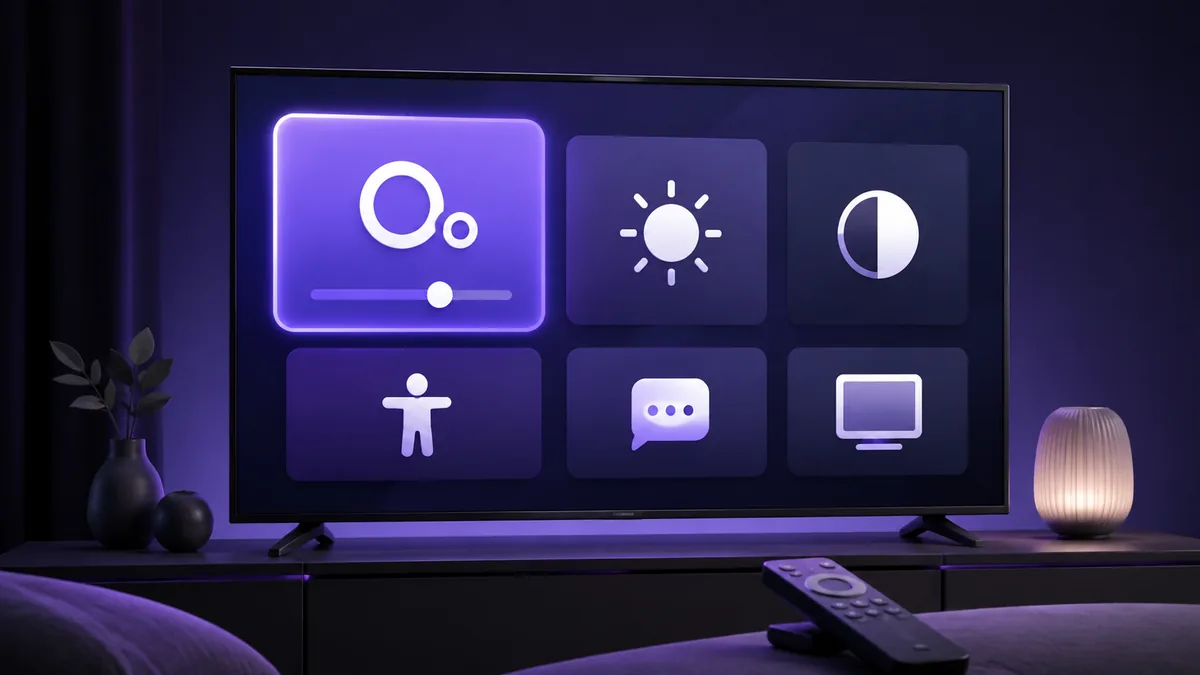
Small interface labels can make a television menu harder to scan from across the room. On compatible Fire TV devices, Adaptive Display offers a built-in way to enlarge text, menus, icons and other interface elements on the Home, Settings and Profile screens.
Turn on Adaptive Display
- Open Settings. Start from the Fire TV menu and select the Settings tile.
- Select Accessibility. This area contains the device's supported accessibility controls.
- Open Adaptive Display. If the option is available on the device, select it to view the scale choices.
- Choose Large or Larger. Large applies a moderate increase; Larger applies the maximum enlargement offered by the setting.
Amazon also documents access through Display & Sounds from Quick Actions or Settings on supported interfaces. Menu placement can vary, so use the path shown on the device in front of you.
Choose a size that remains comfortable
Begin with Large and check common areas such as Home, Settings and the Profile screen. Move to Larger if the interface still feels too small. The useful choice is the one that makes labels and controls clearer without making the screen feel crowded from your normal viewing distance.
The change is reversible, so there is no need to commit to one level. Test the setting in the rooms and lighting conditions where the device is normally used.
Adaptive Display and Screen Magnifier are different tools
Adaptive Display enlarges supported interface elements while leaving the overall layout in place. Screen Magnifier is a separate accessibility feature that zooms the screen and provides controls for moving around the enlarged view. If you want a larger everyday interface without extra navigation, try Adaptive Display first.
Amazon notes that Adaptive Display can work alongside other accessibility features, including Screen Magnifier, Text Banner and VoiceView. Enable only the tools that make the interface clearer for you.
Return to the original interface size
Go back to Settings > Accessibility > Adaptive Display and select Default. This restores the standard scale for the supported Fire TV interface areas.
Common questions
Does Adaptive Display enlarge every app?
Amazon describes the feature for the Fire TV Home, Settings and Profile screens. Do not assume that it changes every third-party app or the content shown inside an app.
Which size should I select?
Large is the moderate option and Larger is the maximum option. Try both from your usual viewing distance and keep the clearer result.
How do I undo the change?
Open Adaptive Display again and select Default.
Source and review note
Last checked September 7, 2026. Menu names and feature availability can vary by device and software version. Follow the current manufacturer guidance for the exact device.