
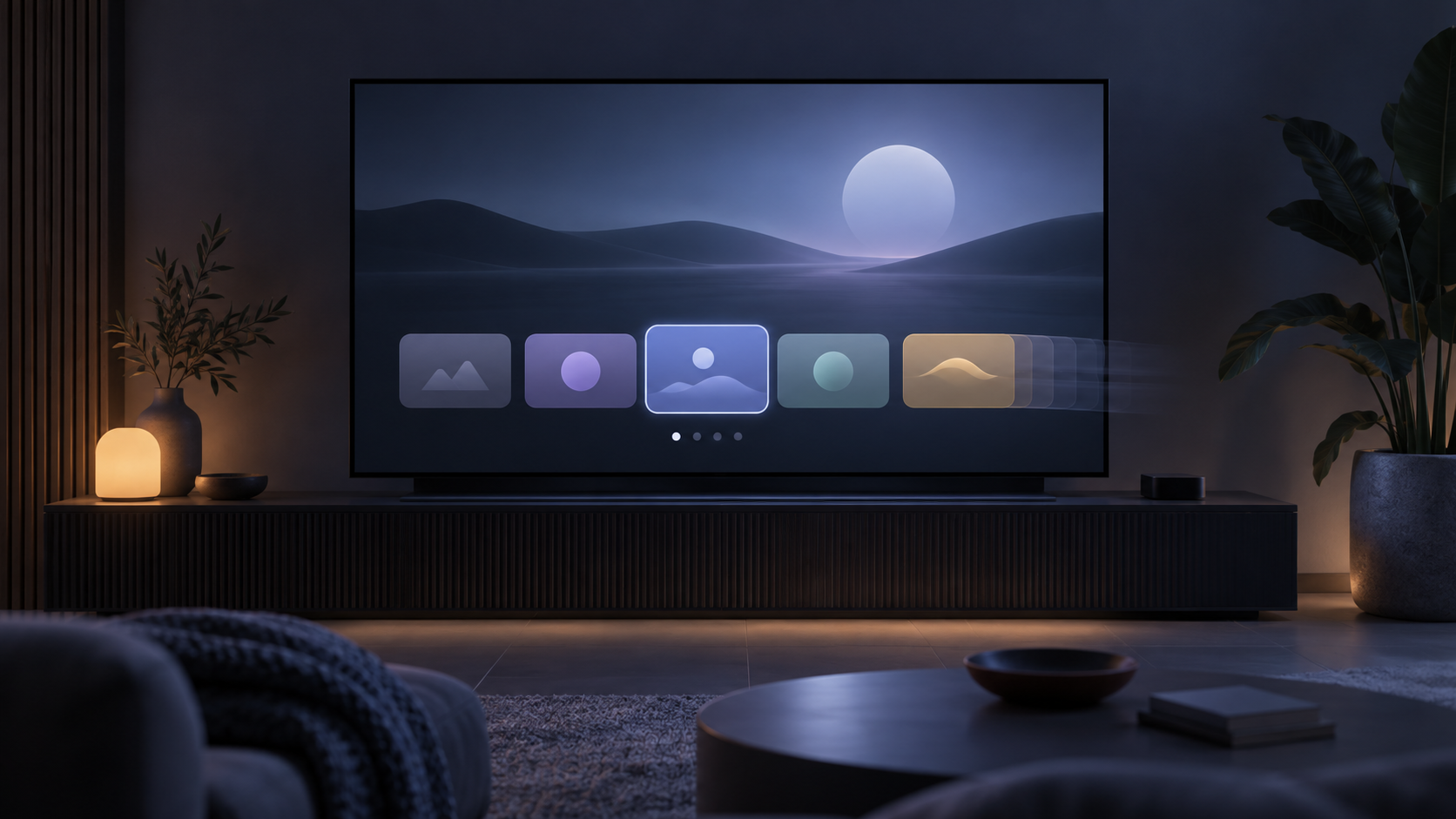
An Apple TV interface can use movement when you move between items or browse the home screen. If that movement feels distracting, the Motion controls offer a way to reduce it. These settings affect the device interface; they do not change your television’s physical display settings.
Turn on Reduce Motion
- Open Settings on Apple TV 4K.
- Choose Accessibility.
- Select Motion.
- Turn on Reduce Motion.
Apple describes this setting as limiting the amount of motion displayed during navigation. Use it for a calmer menu experience, then return to the same path if you later prefer the normal interface movement.
About Dim Flashing Lights
The same Motion area can include Dim Flashing Lights. Apple says this feature automatically dims supported video that contains flashing or strobing lights, and the playback timeline can identify those moments when the feature is active.
Stop automatic video previews
If supported apps begin preview playback while you browse, turn off Auto-Play Video Previews in the Motion settings. This is a separate preference from Reduce Motion: one changes navigation movement, while the other controls automatic previews where the option is supported.
Do not expect every app to expose the same behaviour. App and device availability can vary, so check the result after changing the setting and use the app’s own settings only if it provides a separate preview control.
Availability and expectations
Apple notes that not all features and content are available in every country or region or on every Apple TV hardware model. If you do not see Motion or one of its options, keep the device software current and compare the names on your screen with Apple’s current documentation.
These options are intended to change how Apple TV 4K presents motion. They do not repair a flickering TV panel, HDMI issue or other hardware fault. If the entire screen flashes outside the device interface, check your television and physical connections separately.
Choose the setting that matches the issue
Reduce Motion is about navigation movement. If sudden loud audio is the problem, use Reduce Loud Sounds on Apple TV instead. If menu items need spoken feedback, the separate Apple TV VoiceOver guide is the relevant accessibility tool.
A quick checklist
- Open Settings > Accessibility > Motion.
- Turn on Reduce Motion for calmer navigation.
- Use Dim Flashing Lights only as an optional viewing preference.
- Turn off Auto-Play Video Previews if supported previews are distracting.
- Check Apple’s current documentation when an option is missing.
Official source
For current availability and the complete safety note, see Apple’s Apple TV 4K guide:
Frequently asked questions
Where is Reduce Motion on Apple TV 4K?
Open Settings, then Accessibility, then Motion. Turn on Reduce Motion from that screen.
Does Reduce Motion fix a flickering TV screen?
No. It changes Apple TV navigation movement. A persistent panel, cable or input issue needs separate television or connection checks.
Is Dim Flashing Lights a medical safety feature?
No. Apple says it should not be relied upon for medical treatment, injury prevention or high-risk situations.