
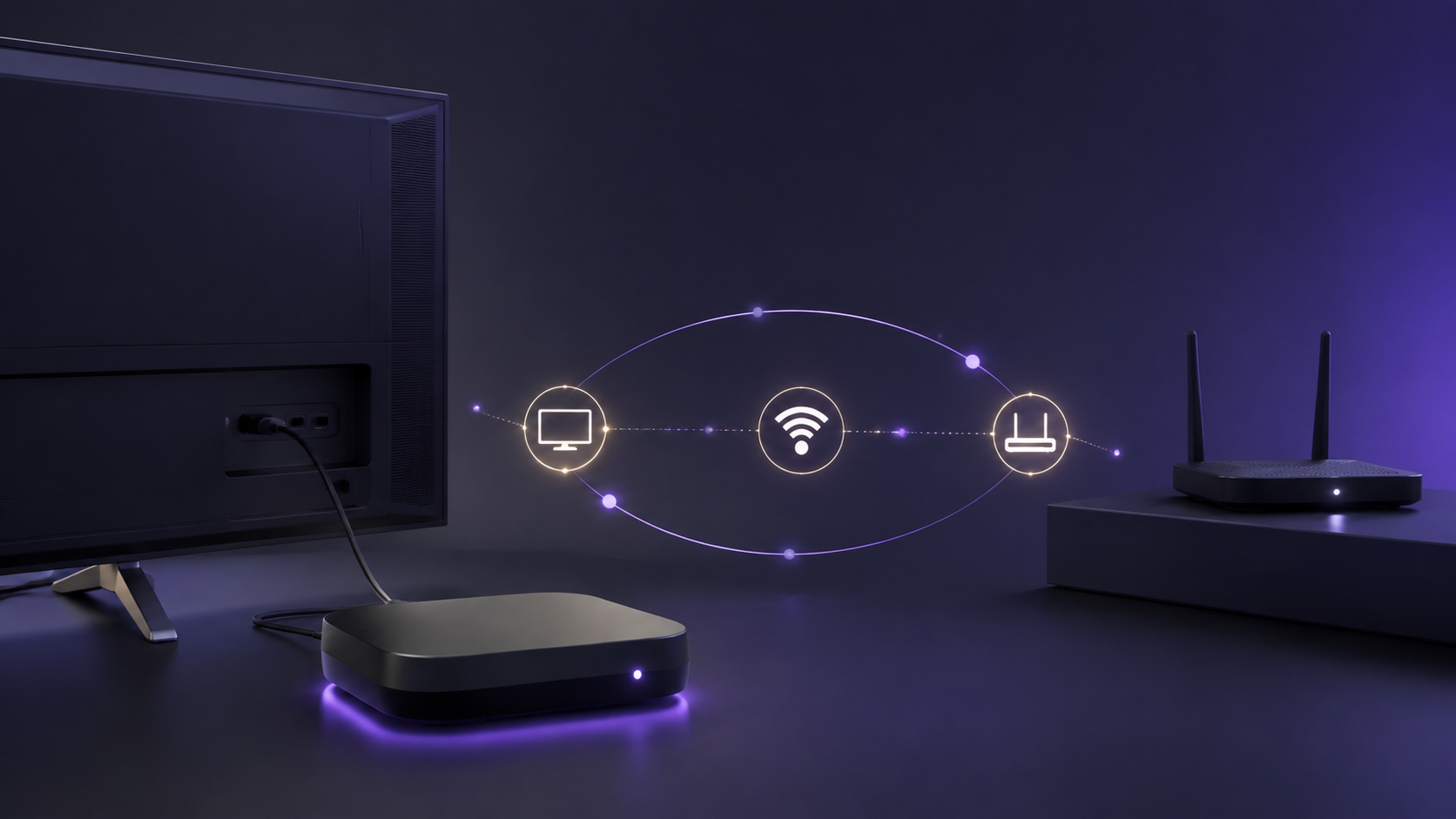
When a Fire TV device cannot connect or stops responding as expected, a restart can be useful - but it is not the first thing to do. Amazon's Network Status tool gives you a quick way to identify which part of the connection needs attention before you restart the device, reconnect Wi-Fi, or work on the router.
Open Network Status
- Start from the connection screen when one is visible.If the device displays an Unable to Connect message, select Network Diagnostics on that screen.
- Or open it from Settings.Go to Settings, then Network. On compatible interfaces, press Play/Pause on the remote to open the status tool.
- Read both connection results.Check the device-to-router result and the router-to-internet result before taking the next step.
- Use the recommendation section.Follow the on-screen recommendation that matches the result rather than guessing at the cause.
Read the result before changing your setup
A connection can fail in more than one place. If the device cannot reach the router, focus first on the selected Wi-Fi network and signal path. If the device reaches the router but the router cannot reach the internet, check the wider connection before changing the Fire TV settings. This distinction helps you avoid an unnecessary reset or a long sequence of unrelated changes.
Some compatible Fire TV devices also offer a download-speed result, an Advanced view with detailed network information, or a Run Speed Test option. Those controls are optional and vary by device, so treat the basic connection results and on-screen recommendation as the common starting point.
If the status tool reports a connection issue
- Follow the on-screen recommendation first.The Network Status tool is designed to point you to the issue it observed.
- Restart the Fire TV device if the issue remains.Unplug it from power, wait 10 seconds, and reconnect it. Let it start fully before checking Network Status again.
- Refresh the Wi-Fi connection only if needed.In Settings > Network, turn Wi-Fi off and back on. If the device still cannot connect, forget the selected network and reconnect with the correct password.
- Restart the modem and router for an internet-side issue.Amazon's guidance is to unplug both, wait about one minute, reconnect the modem first, then reconnect the router after the modem has re-established its connection.
Make the follow-up check useful
After one change, return to the Network Status tool and see whether the result has changed. Testing one change at a time makes it easier to tell which action restored the connection. If several devices on the same network are offline, the issue may be outside the Fire TV device; use the result to focus your next check accordingly.
Common questions
Can I open the tool when the device shows an Unable to Connect message?
Yes. Amazon directs users to select Network Diagnostics from that error screen. You can also access the tool from Settings > Network.
Does Network Status show whether the problem is Wi-Fi or the internet connection?
It checks both the connection from the device to the router and the connection from the router to the internet. The recommendation section provides context for the result it finds.
Will every device show a speed test?
No. Amazon lists download-speed results, Advanced details, and a speed-test option as additional features on some compatible Fire TV devices.
Should I factory reset first?
No. Amazon places the factory-reset option after the diagnostic, device restart, Wi-Fi reconnection, and modem/router restart steps. Start with the least disruptive check that fits the result on screen.
Sources and review note
- What is the Fire TV Network Status Tool? - Amazon Fire TV Support
- Can't Connect Your Fire TV Device to Wi-Fi - Amazon Fire TV Support
Last checked September 6, 2026. Menu labels and optional diagnostic controls can vary by model and software version. Use devices only in accordance with applicable terms and copyright laws.